Learn how to create eye-catching price boxes in the free version of Elementor! In this step-by-step tutorial, I’ll show you how to design professional-looking pricing tables for your WordPress website without upgrading to Elementor Pro. Whether you’re a beginner or looking for a quick guide, this video covers everything you need, from using basic Elementor elements to customizing the look and feel of your price boxes.
Learn how to turn an AI-generated website or app design into production-ready code using a two-step AI workflow. The first prompt creates a detailed developer handoff covering the design system, layouts, components, responsive behavior, and interactions. The second guides coding agents like Claude Code or Codex through implementing the handoff with clean, maintainable code and high visual fidelity.
This prompt helps AI models like Claude generate a real WordPress Full Site Editing (FSE) theme, not just a collection of HTML files that look like a website.
Latest YouTube video
Follow a practical build from planning through implementation.
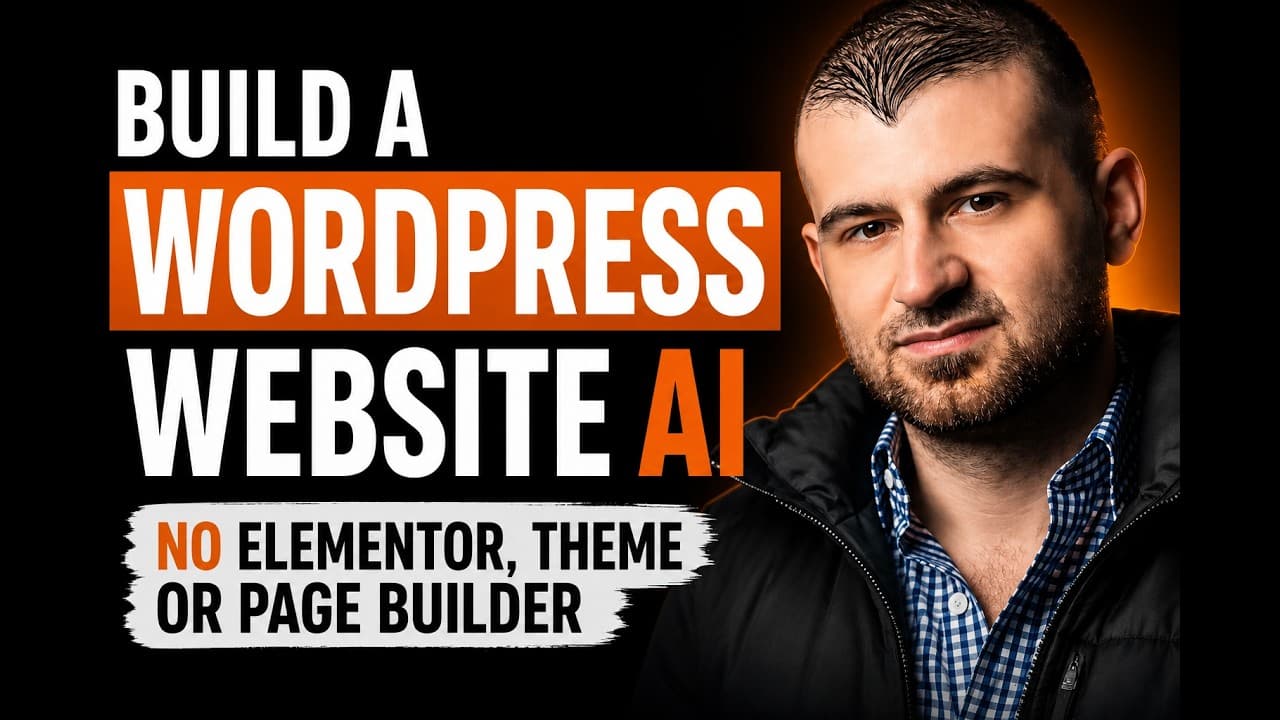
Build a WordPress Website With AI — No Elementor, Theme or Page Builder
In this tutorial, I'll show you how to build a completely custom WordPress website using AI — without Elementor, a page builder, or a traditional WordPress theme.
We start with a custom website design created using Claude Design. I originally described the website I wanted to ChatGPT, which helped me create the prompt I used to generate the design.
Once the design was finished, I used Claude to create a detailed developer handoff file containing the information needed to reproduce the design in code.
🔗 **RESOURCES**
📄 **Get the AI prompts used in this video:**
https://manzari.com/learn/ai/ai-design-to-production-code
The article includes both prompts used in this workflow:
• **Prompt #1:** Turns your completed AI website design into a detailed developer handoff.
• **Prompt #2:** Gives Claude Code or Codex instructions to implement that handoff as production-ready code.
💻 **Download Visual Studio Code:**
https://code.visualstudio.com/download
🚀 **Kinsta WordPress Hosting:**
https://kinsta.com/?kaid=ZTKKCPPRESIJ
I use Kinsta to host the WordPress website demonstrated in this video. If you're considering Kinsta for your own WordPress website, I'd appreciate it if you use my affiliate link above. I may earn a commission if you sign up through my link, at no additional cost to you. Your support helps me continue creating tutorials like this one. Thank you!
From there, I connect to the WordPress website through Visual Studio Code using SSH, install the Codex extension, and give Codex the implementation prompt.
Codex then builds the custom website directly from the handoff. Once the implementation is complete, the website is immediately available on the live WordPress installation. I also show how I use Codex to make additional changes after the initial build.
The result is a custom-coded WordPress website built using an AI-assisted development workflow — without relying on Elementor or another visual page builder.
**Workflow used in this video:**
ChatGPT → Claude Design → Developer Handoff → VS Code → Codex → WordPress
If you'd like to see a separate tutorial showing how to connect Visual Studio Code to your WordPress hosting account using SSH, let me know in the comments and I'll make a dedicated tutorial.
**Tools featured in this video:**
• WordPress
• ChatGPT
• Claude Design
• OpenAI Codex
• Visual Studio Code
• SSH
• Kinsta
#WordPress #AI #Codex