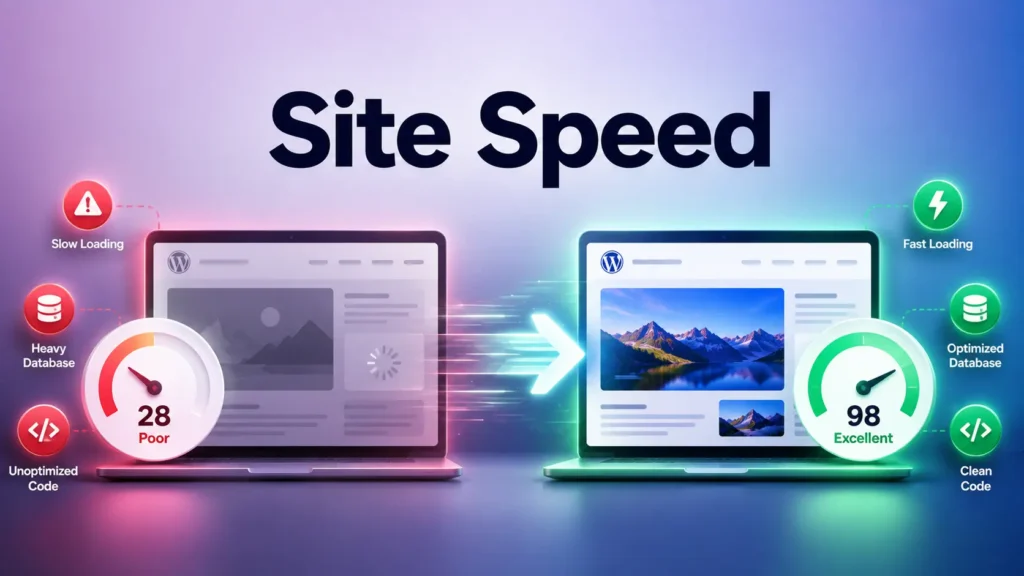
If your WordPress site feels slower than it used to, you’re not imagining it. Performance issues tend to creep in gradually — not from one big change, but from a quiet accumulation of small ones. The good news? Most of it is fixable.
Here’s a breakdown of what’s actually causing the slowdown, and a step-by-step approach to fixing it.
What’s causing the slowdown?
There isn’t just one culprit. It’s a combination of factors that stack up over time.
1. Plugins are getting heavier
Popular plugins — especially page builders — ship more features than ever. More features mean more scripts, more scripts mean more network requests, and more requests mean slower load times. It’s not unusual to see a single page loading 20–30+ JavaScript files, most of which aren’t even needed on that page.
2. Updates aren’t always performance updates
Not every update is designed to make your site faster. Some updates add new UI features, introduce additional styling layers, or load assets globally instead of conditionally. Over time, this adds weight — even if everything still technically “works.”
3. Too many third-party integrations
Chat widgets, analytics tools, heatmaps, marketing scripts — each one might add only a little load time individually. But together, they compound quickly. This is one of the biggest hidden performance killers on modern WordPress sites.
4. Cheap or misconfigured hosting
Hosting matters — but it’s not always about price. Sites on solid hosting plans can still underperform when caching isn’t configured, a CDN isn’t enabled, or PHP workers are too limited. Hosting plays a role, but it’s rarely the only issue.
How to fix it: a step-by-step approach
Before making any changes, it’s important to understand what you’re actually dealing with. Here’s the order that tends to get the best results.
Audit what’s actually loading
Use performance tools to see exactly what’s happening before you touch anything. You’ll often find scripts loading that you didn’t even know about.
Chrome DevTools (Network tab)PageSpeed Insights. Look for unused scripts, large JS/CSS files, and duplicate assets.
Remove what you don’t need
Ask yourself: is this plugin actually being used? Is this feature earning its place? If not — don’t just disable it. Remove it completely. Disabled plugins can still leave traces.
Optimize your page builder setup
If you’re using Elementor or a similar builder: reduce nested containers, avoid excessive animations, and limit global widgets. Small changes here consistently yield measurable improvements.
Fix your caching and CDN configuration
This is where a large share of performance gains typically come from. Make sure you have full-page caching, browser caching, and a CDN enabled — especially if you have visitors outside your server’s region.
Upgrade your hosting — if everything else is done
If you’ve optimized everything else and the site is still slow, then yes, it may be time to upgrade. But this step belongs last, not first. Throwing better hosting at an unoptimized site rarely solves the underlying problem.
“Most slow WordPress sites aren’t broken. They’re just carrying more weight than they should.”
Should you be worried?
Not exactly — but you should be paying attention. The broader trend is that websites are becoming more complex, tools are becoming more powerful, and performance is becoming easier to neglect. The sites that stay fast are the ones where someone is being intentional about what gets added.
If you clean things up, optimize what matters, and avoid unnecessary bloat, there’s no reason you can’t have a site that’s both feature-rich and genuinely fast.
Key takeaway
WordPress performance issues are almost always a symptom of accumulation — plugins, scripts, integrations, and configurations that made sense individually but add up over time. Audit first, remove ruthlessly, configure properly, and upgrade hosting only as a last resort.